
App submission happens in 3 stages.
- Provide Data & Graphics
- Request an app Review
- Invite Live Tiles to your Developer accounts.
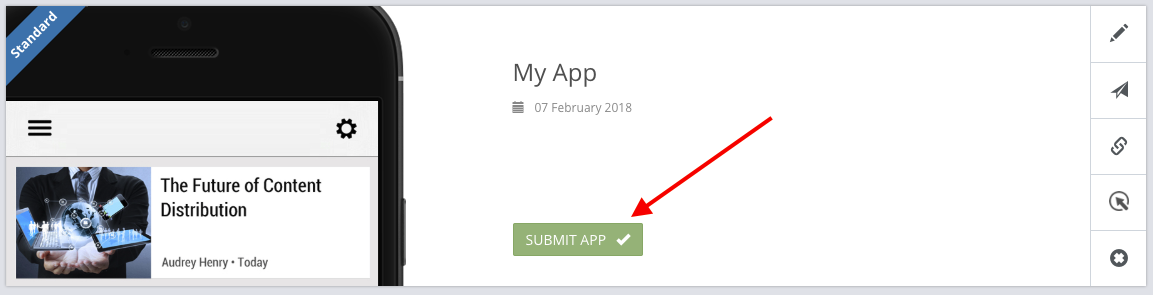
The submission screen is broken into 4 Sections, each one should be completed before requesting an App Review & Submission. Its accessible from the apps dashboard by clicking the Submit app button next to your app.
Provide Data & Graphics
General Information
The general information tab allows you to provide the General App Store listing information needed for submission. Learn more here.
Graphics
The graphics tab allows you to provide the App Icons, launcher images and screenshots for your app & it’s submission. Learn more here.
Binary
The binary tab allows you to provide information about how your app should be built and packaged on the App Store & Google play. This tab can be safely ignored and left to our team to complete. However if you intend on replacing an existing app you should complete this section. Learn more about binary requirements here.
Notifications
The notifications section allows you to provide the Firebase configuration files needed to support Push notifications in your app. This is required for submission and you can learn more about the requirements and obtaining them here.
Request an App Review
Once you have completed all the requirements (or most of them) you can request that your app be Reviewed and submitted to Apple and Google. You can let us know using the “Contact Support” buttons in the bar on the right or link in this page header.
Live Tiles will perform a review of your App and will rate its chance of a successful App review on Apple and Google. We’ll inform you of the results and if successful we can then proceed to the full submission of your Apps and getting them live for your users to use.
Invite Live Tiles to your Developer accounts.
After we review your app we’ll send you a unique email address that you will need to invite to access your Apple and Google developer accounts. This allows us to generate all the other files and options needed to get your apps live and manage the submission process for you.
For Apple you will need to invite us from two places and the Google console requires two steps.
App Store Connect
After logging in, go to Users & Roles. Create a new user with the Technical or App manager Role.
Apple Developer Program
You can invite users from the People tab on the left side. Please invite us as an Admin user so that we can generate the needed resources ourselves. If you cannot do this however we can provide additional instruction.
Google Play console
Go to Settings > Users & Permissions. Invite us with access to Create and Manage apps.
Once we’ve accepted your invite you may need to confirm our access to your account. We’ll notify you if that is the case.
Firebase Console
Invite us to your Firebase project. (Learn about Creating one here). You can invite us via the Settings Wheel next to your project name, then Users & Permissions.