
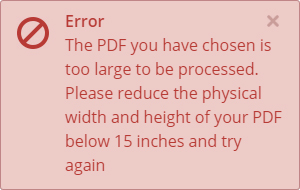
If you have added a PDF to Flipbooks Online and you receive this error (below), there are three ways you can resolve this problem.
Reduce the DPI (via Adobe Acrobat Professional)
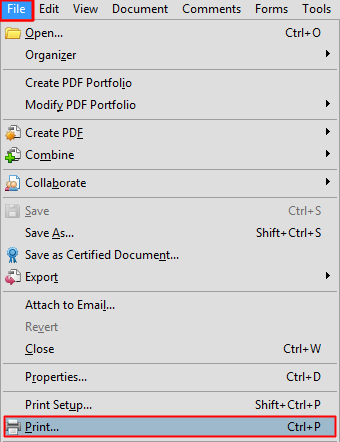
If you have Adobe Acrobat Professional installed on your machine, open the PDF and click on File: Print. (below)
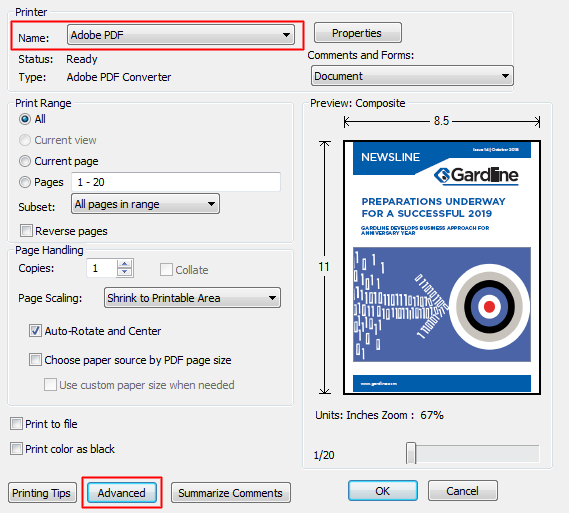
This will then launch a popup. Please ensure that you change the Printer Name to Adobe PDF. Then, click on Advanced. (below)
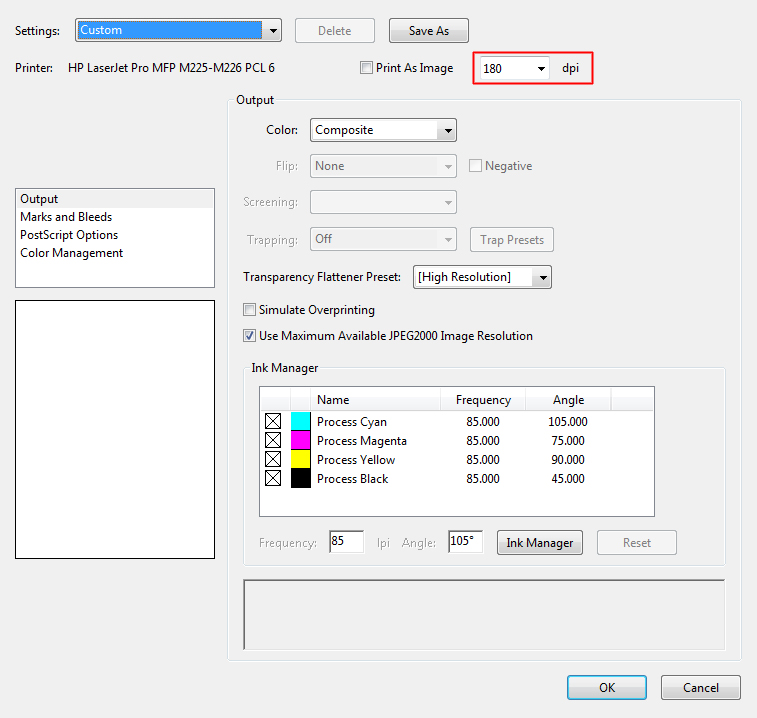
This will launch another popup window. Please change the DPI setting from 300 to 180 and then click OK. (below)
This will then ask you to save the PDF. After doing so, please then add the PDF into Live Tiles Flipbooks Online. The error message should no longer appear.
Reduce the DPI (via the original artwork)
Another way to resolve this problem is to change the DPI output settings within the original artwork when exporting to a PDF. If your artwork was created in Adobe InDesign for example, open the artwork and click File: Export. (below)
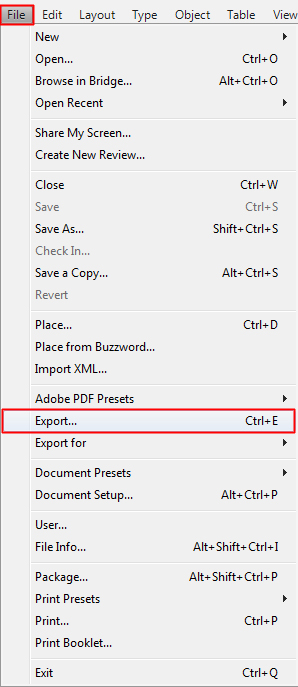
Once this has been done, it will ask you where you would like to save the PDF to. Please ensure that you change ‘Adobe PDF (Print) to ‘Adobe PDF (Interactive) from the drop down menu. (below)

This will then launch a popup. Please change the Resolution to ‘180’ and click ‘OK’.
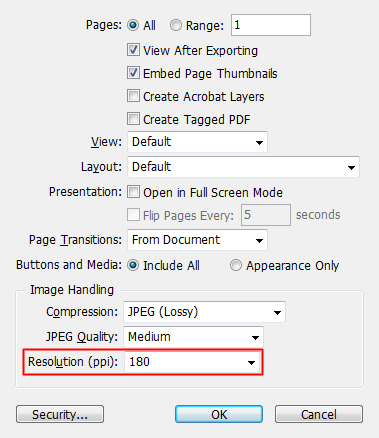
Once this has been done, please then add the PDF into Live Tiles Flipbooks Online. The error message should no longer appear.
Send us your PDF
If neither of the above two options are viable, you can always send us your PDF. Our designers will examine your PDF and amend it accordingly. We will then send you the amended PDF, so you can successfully build your Flipbook.
Please send the PDF to support@3dissue.com